

Open live preview
Click the live preview button in the top bar. Your Open live preview in new tab preference in editor settings determines whether the preview opens in a new browser tab or in the editor. When the preview opens in the editor, click Site settings in the preview toolbar to edit your site’s configuration without leaving the preview.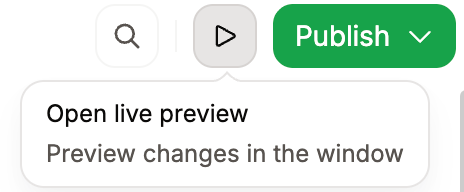
Edit site settings in live preview
Use the Site settings inspector when you want to adjust site configuration while checking the rendered result. It includes the same sections as the Site configurations panel.- Open the live preview in the editor.
- Click Site settings in the preview toolbar.
- Select a configuration section and edit the settings.
- Close the inspector with Close site settings to return to the preview.
Ask the agent in live preview
Click Ask agent in the preview toolbar to open the editor agent beside the live preview. Opening the agent closes the Site settings panel. Opening Site settings closes the agent. Viewer roles do not see the Ask agent button.Live preview versus preview deployments
Use live preview for immediate feedback while editing. When you need to share changes with your team or test on a different device, use a preview deployment.